Step-by-step guide
How to Make a Hotel Lobby AI Video
Quick answer
- 1Choose two clear photosOne person per photo, face clearly visible, in good light.
- 2Put one person on each sidePhoto 1 stands on the left, photo 2 on the right. Tap Swap sides to switch them before you generate.
- 3Generate the 10-second vertical videoTap Generate to get a 10-second 9:16 video of both people in the orange booth. Usually ready in a few minutes. Queue time can vary.
- 4Download it and add the soundSave the MP4, then add the Hotel Lobby sound in TikTok or Reels when you post, if you want the viral audio.
From $6.99 · one-time payment · no subscription · no account
- One-time payment
- No account or subscription
- Failed generations return your video credit automatically
- Photos deleted after 30 days
The Hotel Lobby AI trend — also called Migos AI — puts two people side by side in a bright orange booth, trading turns at one hanging microphone. Here's how to make one well, from choosing photos to posting it with the viral sound.
1. Pick the right photos
The booth, light and mic are the same in every video, so your two photos decide how good the result looks. Two decent, similar photos beat one great photo and one bad one.
One clear person per photo
Crop out anyone else. The person should fill a good part of the frame.
A clear, sharp face
No sunglasses, masks, hands or hair covering the face.
Good, even light
Daylight from a window works well. Avoid backlight and night shots.
Front-facing or a slight angle
Looking roughly toward the camera. Full profiles lose likeness.
Avoid
- Group shots — the tool can't pick one person out of a crowd
- Dark or grainy photos
- Tiny faces (far-away or full-body shots)
- Heavy filters, face-edit apps or strong makeup effects
- Screenshots of screenshots and very small images
2. Decide who stands where
Photo 1
Left side of the booth
Photo 2
Right side of the booth
Each person keeps their own face, hair and outfit on their own side. Uploaded them the other way round? Once both photos are in, tap ⇄ Swap sides to switch left and right — no re-upload. Do it before you generate; a finished video can't be flipped.
3. Ways to make the trend
There are three common routes. Pick the one that fits how much control you want.
Make Hotel Lobby (one click)
Good for: Upload two photos and get a finished 10-second 9:16 clip in the orange booth. No prompting, no editing, pay per video.
Keep in mind: One scene only. You can't pick the song, lyrics or moves, and it's always exactly two people.
DIY with an AI video prompt
Good for: You already use an AI video tool and want control over the wording, style or length.
Keep in mind: You handle reference images, identity, framing and retries yourself, and results depend on the tool.
Template or motion workflow
Good for: Editing-app templates or motion-transfer tools that copy movement from a reference clip.
Keep in mind: Templates usually need filmed footage of each person. Motion transfer needs a reference clip you have the right to use — not the original performance video.
Using your own AI video tool? Copy our Hotel Lobby AI prompts.
4. Generate and wait
- With both photos in, tap Generate.
- If you don't have a video left, choose a pack — one-time payment, no subscription, no account.
- Your result page opens. Usually ready in a few minutes. Queue time can vary. You can close it — we email you when your video is ready.
- Download the 10-second 9:16 MP4. There's no watermark.
Every generation is a new take, so two videos from the same photos won't be identical.
Real output
What you'll get
An unedited 10-second, 9:16 clip from the generator above. The people in this sample are AI-generated.
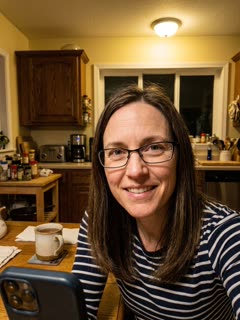
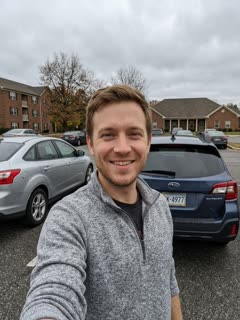 2 photos in
5. Add the viral sound
Your downloaded video has AI-generated performance audio — voices made for this clip, not the original “Hotel Lobby” recording.
The familiar Hotel Lobby sound on TikTok and Reels comes from the platforms' own sound libraries. Adding it there when you post is what links your video to the trend.
On TikTok
- Upload the MP4 and tap Add sound.
- Search “Hotel Lobby Quavo Takeoff” and pick the trending clip.
- Open Volume and turn the original sound down (or off) so the AI vocals don't clash.
- Under More options, turn on the AI-generated content label, then post.
Same idea in Instagram Reels: tap Add audio, search for the same sound, and lower the original audio.
Some sounds aren't available in every region or to business accounts. If you can't find it, open another Hotel Lobby video and tap its sound to use it.
Troubleshooting
- The face doesn't look right
- Likeness comes from the photo. Use a sharper, front-facing photo where the face is larger in the frame, with no sunglasses or filters, and make a new take. If we clearly mixed up or swapped the two people, email us within 7 days and we'll remake it.
- The people are on the wrong side
- Photo 1 is always the left person and photo 2 the right. Before generating, tap Swap sides — no re-upload needed. If the finished video doesn't match the order you uploaded, email us within 7 days for a remake.
- The photo is dark or low quality
- Retake it facing a window in daylight, or pick a different photo. Very small images are rejected at upload. Avoid screenshots and photos that have been compressed many times in chats.
- The movement isn't what I wanted
- Each take is a new performance, and moves can't be chosen. Generate another take and keep your favorite — that's what the multi-take packs are for.
- The viral sound is missing
- That's expected: the original song isn't in the download. Add the Hotel Lobby sound in TikTok or Reels when you post (see above).
- The generation failed
- A failed generation returns its video credit automatically, so you can try again.
FAQ
How long is a Hotel Lobby AI video?
+
10 seconds, as a vertical 9:16 MP4 with no watermark — sized for TikTok and Reels.
Can I use one photo with both people in it?
+
No. Each person needs their own photo: photo 1 becomes the left performer and photo 2 the right. Group photos aren't supported.
How long does it take to generate?
+
Usually ready in a few minutes. Queue time can vary. You can close the page — we email you when it's ready.
Does the downloaded video include the original Hotel Lobby song?
+
No. Your downloaded video has AI-generated performance audio — voices made for this clip, not the original “Hotel Lobby” recording. Add the trending Hotel Lobby sound in TikTok or Reels when you post.
Can I choose the song, lyrics or dance moves?
+
No. The booth, light and hanging mic are fixed, and each take is a new performance you can't choreograph. If you need that control, a DIY prompt in your own AI video tool is the better route.
Can I make it with my own AI video tool instead?
+
Yes. Our Hotel Lobby AI prompt page has copy-ready prompts for the two-person orange-booth look, including identity and camera instructions.
Do I have to label it as AI on TikTok?
+
Yes. TikTok requires creators to label realistic AI-generated video. Turn on the AI-generated content setting under More options before posting.
Updated .